
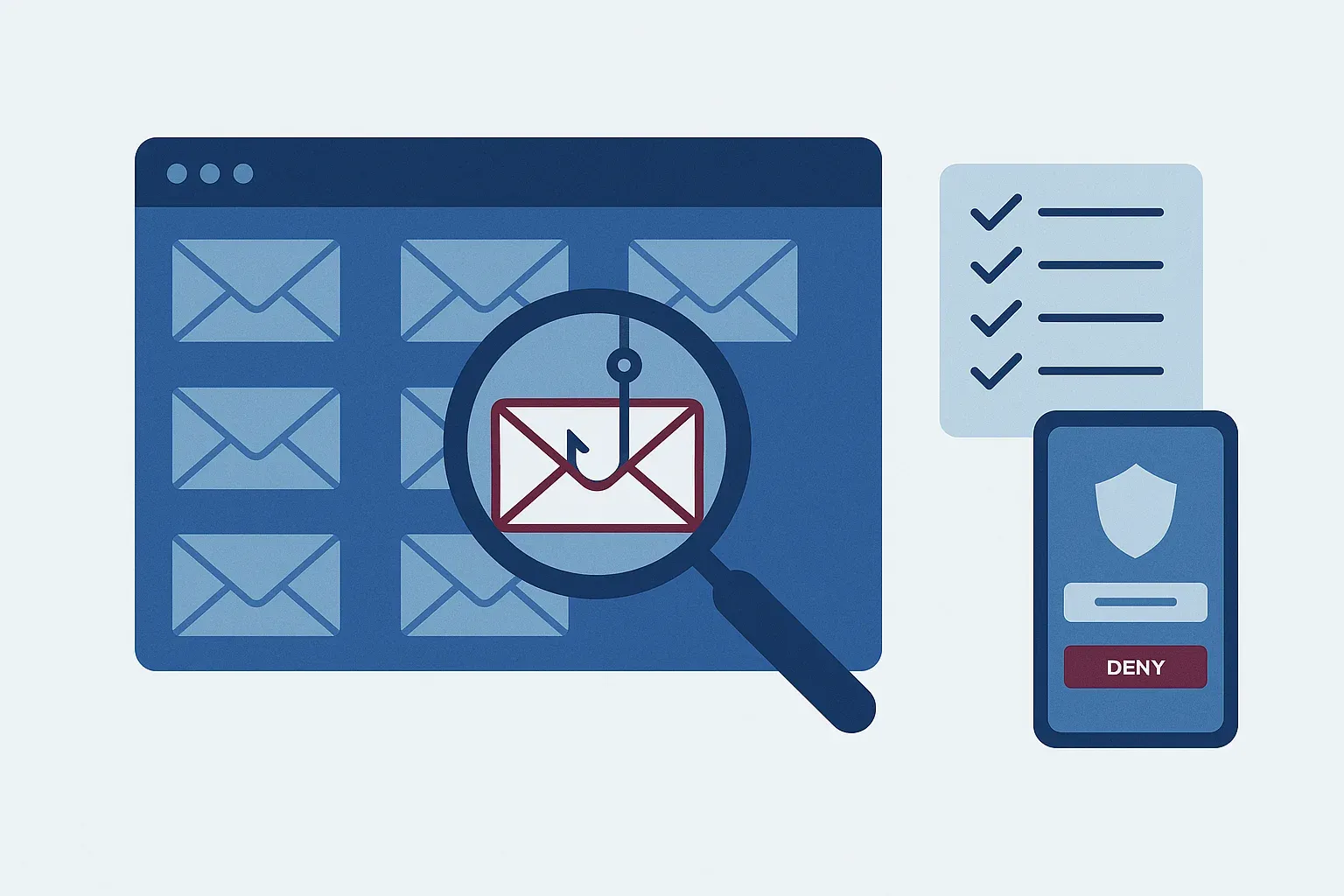
Anyone who works in Microsoft 365 gets a steady stream of messages from Microsoft: security notices, shared-file notifications, storage warnings, billing updates. Nearly all of them are routine. That routine is exactly what makes fake ones effective. When a message looks like the fifteen real ones you got this month, it's easy to click before you think.
The goal of most fake Microsoft emails is simple: get you to type your work password into a page the attacker controls, or approve a login they started. Once they have that, they can read your email, send messages as you, and quietly set up invoice fraud or worse.
The good news is that you don't need to be technical to catch most of them. You need a few habits you use every time.
The fake Microsoft 365 alerts we see most
The wording changes all the time, but the themes stay remarkably steady:
- "Your password expires today." A button offers to "keep your current password." Many businesses don't even use password expiration anymore, which makes this one easy to dismiss if you know your own policy.
- "Your mailbox is almost full." Messages will supposedly stop arriving unless you "upgrade storage" or "verify your account."
- "Unusual sign-in activity." A login from a far-off country is described, with a button to "review activity" or "secure your account."
- "A document has been shared with you." It might be labeled as an invoice, a contract, a payroll change, or a voicemail, and it leads to what looks like a Microsoft sign-in page.
- Billing or subscription problems. Some of these even ask you to call a phone number, where a "support agent" walks you through giving them access.
Some of these messages are sent through legitimate cloud services, which means they can come from real-looking addresses and pass basic filtering. That's why the checks below focus on what you do next, not just on how the email looks.
Five checks before you click
1. Look at the actual sender address, not the display name. Anyone can set their name to "Microsoft 365 Team." Tap or hover on the name to see the full address. Look for misspelled domains, extra words tacked on, or free email services. Keep in mind that a real-looking address is a good sign, not proof.
2. Hover over the link before you click it. On a computer, rest your mouse on the button and look at the address that appears in the corner of the window. On a phone, press and hold. If the destination isn't clearly a Microsoft address, or it's a long jumble of characters, stop there.
3. Go to the portal yourself. This is the most reliable check of the five. If an email says your password is expiring, your storage is full, or someone shared a file, open a browser and go to office.com (or open Outlook or OneDrive the way you normally do). Real alerts and real shared files will be waiting for you there. If there's nothing there, the email was fake.
4. Treat urgency as a warning sign. "Within 24 hours," "account will be suspended," "final notice." Pressure is the attacker's favorite tool because it keeps you from thinking. Microsoft does send time-sensitive notices, but a real one won't fall apart if you take two minutes to check it through the portal.
5. Never approve a sign-in you didn't start. If you enter your password on a page and then immediately get a login approval on your phone, that's a red flag. Some fake pages pass your password to the real Microsoft site in the background and wait for you to approve the prompt. If a prompt appears and you're not actively signing in to something, deny it and let your IT team know right away.
A quick checklist to print for your team
- Check the sender's full address, not just the name.
- Hover or long-press before clicking.
- When in doubt, go to office.com directly.
- Slow down whenever a message pushes you to hurry.
- Deny any sign-in prompt you didn't expect, then report it.
- Forward anything suspicious to IT instead of deleting it, so others can be warned.
What protects you behind the scenes
Your team's habits are the last line of defense, but they shouldn't be the only one. For our clients, several layers work together before a message ever reaches someone's inbox:
- Email security filtering scans incoming mail, links, and attachments, and pulls back messages that turn out to be malicious after delivery.
- SPF, DKIM, and DMARC on your own domain make it much harder for someone to send email that pretends to be from your company. We manage this through our DMARC management service.
- Multi-factor authentication with number matching means a stolen password alone isn't enough, and a user can't approve a prompt without seeing a matching number.
- Sign-in monitoring watches for logins from unusual places or suspicious activity like new mailbox forwarding rules, so a compromised account gets caught early.
- Security awareness training and phishing simulations keep these five checks fresh, instead of something people heard once at onboarding.
You can read more about how these pieces fit together on our network security page.
When someone clicks anyway
It happens, even to careful people. What matters most is speed. If someone on your team entered a password on a page that turned out to be fake, have them tell IT right away. The sooner the password is changed and active sessions are signed out, the less time an attacker has to do anything with it. No one should feel embarrassed to report a mistake. Silence is what turns a close call into a real incident.
If you're not sure how well your Microsoft 365 setup would hold up against a convincing fake alert, we're happy to take a look. Book a discovery call and we'll walk through it with you.