
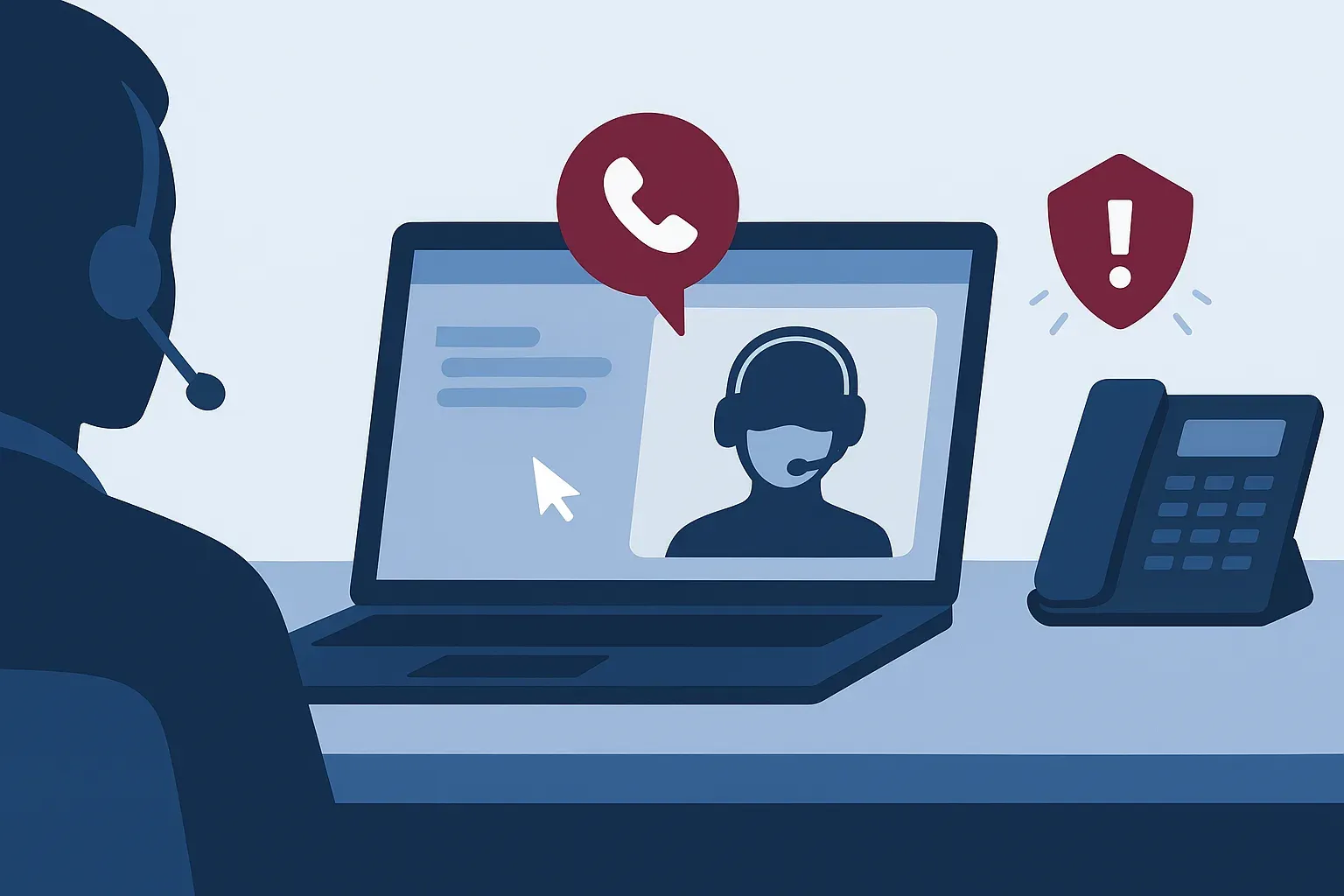
Picture a Tuesday morning at the front desk. Your office manager's inbox has been acting strange since yesterday, and a Teams message pops up from someone labeled "IT Service Desk." They're friendly, they already know there's an email problem, and they'd like to hop on a quick screen share to clean it up. Five minutes later, they've asked her to install a small support app and read back a code.
That person is not from your IT provider. And by the time the call ends, they may have the same access to that computer that she does.
We've been supporting businesses around Houston for a long time, and pretending to be tech support is one of the oldest cons there is. What has changed is where the scammers show up. They no longer rely only on cold calls. They now come in through the same chat and calling tools your staff use all day to talk to coworkers.
How the fake help desk scam plays out
The details vary, but the pattern we see is pretty consistent:
- A problem appears first. Sometimes the attacker creates it, for example by signing your employee up for a flood of junk newsletters so their mailbox becomes a mess. Sometimes they simply claim there's a problem with your account or computer.
- "Support" reaches out. The contact comes by phone, or by an outside Microsoft Teams chat or call. Microsoft 365 lets anyone with their own account create a display name, so "Help Desk," "IT Support," or even your company name can appear at the top of the chat.
- They ask for control. The request is to share a screen, install a remote support program, run the remote help tool that's built into Windows, or approve a sign-in prompt on your phone "to verify your identity."
- They settle in. Once they have a remote session or an approved login, they can plant malicious software, collect passwords, read email, and look around your network for anything worth stealing or locking up.
None of this requires breaking through a firewall. The employee opens the door because the person on the other side sounds helpful and seems to know what they're talking about.
Why it works so well on Teams
People are trained to be suspicious of email. Chat feels different. Teams is where your coworkers ask quick questions and your managers send updates, so a message there carries a sense of being "inside" the company.
Here's the catch: by default, Teams can allow chats and calls from people at other organizations. Microsoft does flag these with an "External" label and often asks the recipient to accept the message first, but that label is small and easy to click past when someone is busy and wants their email fixed.
The same is true of phone calls. Caller ID can be faked, and a confident voice using the right jargon is persuasive, especially when the caller already knows about the problem you're having.
How to check whether "IT" is really IT
The best defense is a simple rule everyone knows ahead of time: you verify support by contacting them, not by trusting whoever contacted you.
Before letting anyone into a computer or account, your team should:
- Hang up or close the chat, then reach out on a number you already know. Use the support phone number, email, or portal your company already uses, not a number or link the caller gives you.
- Look for the "External" tag in Teams. Your in-house staff and your IT provider's normal channels should not show up as an unknown outside organization asking to take over your screen.
- Never approve a sign-in prompt you didn't start. If your phone asks you to approve a login and you aren't logging in to something at that moment, deny it and report it. Legitimate support will not ask you to approve one for them.
- Don't install software because a stranger asked. Remote access tools are useful in the right hands, and a gift in the wrong ones.
- Don't read codes aloud. One-time passcodes and remote session codes are for you alone.
- Report it even if you said no. One attempt against your front desk often means others in your company are getting the same call.
For our clients, the short version is this: if you get an unexpected call or chat claiming to be us, call our office on the number you already have. If it really was us, we'll pick right back up where we left off. We would much rather get that call than have you accept a screen-sharing request you weren't expecting.
What we do behind the scenes
Good habits come first, but your settings should back them up. As part of our network security services, we look at how your Microsoft 365 tenant handles outside contact, including:
- Limiting external Teams chat and calling to the organizations you actually work with, instead of the whole world.
- Using multi-factor authentication with number matching, so a prompt can't be approved blindly.
- Monitoring sign-ins and endpoints so a suspicious remote session or login gets noticed and shut down quickly.
- Making sure our own support process is consistent and predictable, so your staff know what a real request from us looks like.
Make it part of your training, not a one-time warning
A one-off email saying "watch out for fake IT calls" helps for about a week. What sticks is regular practice. Our security awareness training covers phone and chat impersonation alongside the usual phishing examples, so your team gets used to pausing, verifying, and reporting. It's a small habit that protects the whole company.
If you'd like help tightening your Teams settings or setting up a clear "how to reach IT" process for your staff, that's exactly the kind of thing we handle as part of our managed IT services. Schedule a discovery call and we'll walk through where your business stands today.